Better Handoffs and Repo Setup
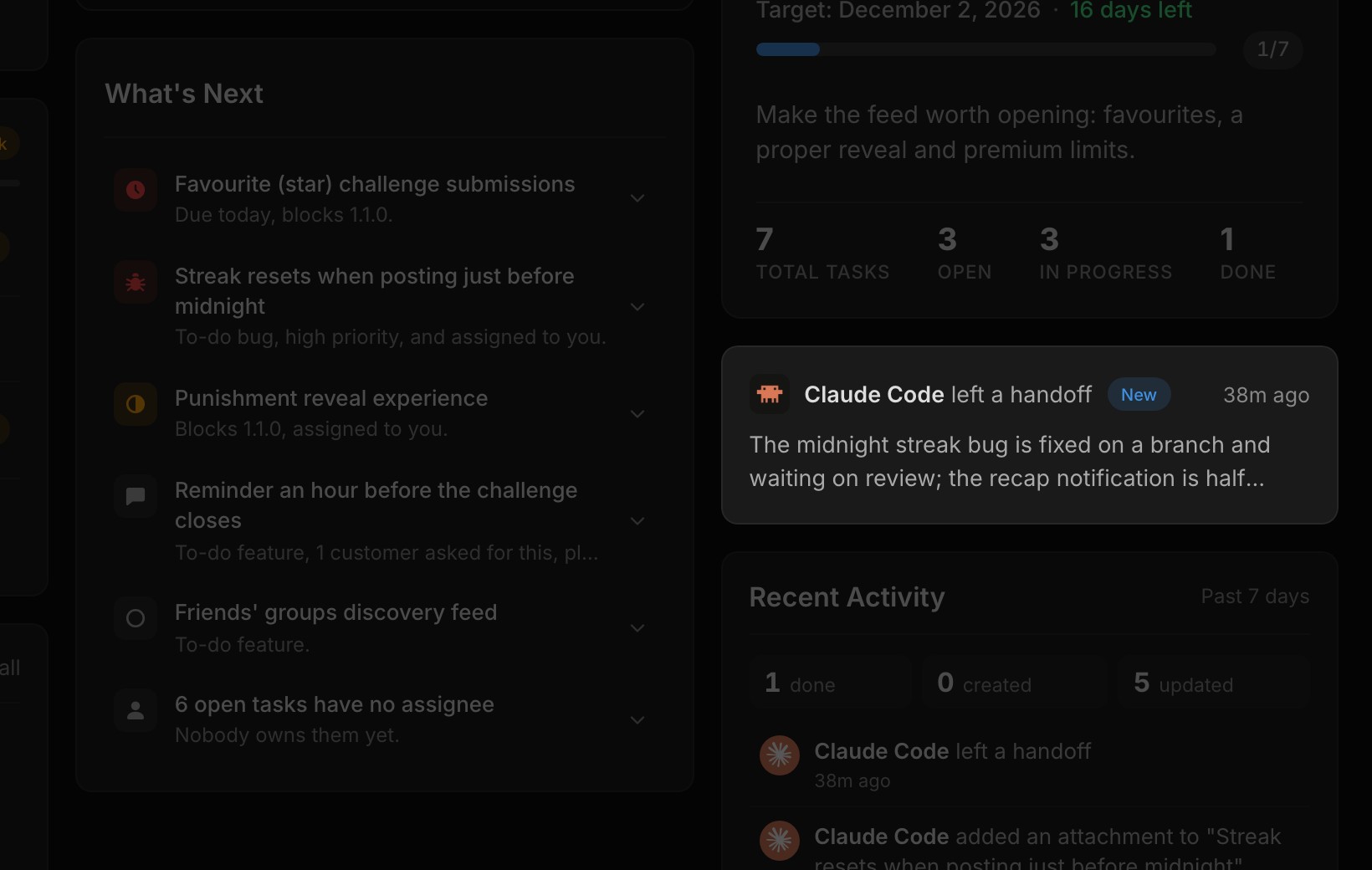
The newest session handoff has its own card on the dashboard, showing which agent left it, when, and how it starts. Choose the card to read the whole handoff. It's marked New, with a dot in the sidebar, until you've read it, and each member has their own read state. The card stays for 7 days.
Your agent's notes are under Context on the Product page, and now open from the dashboard too. Every line in Recent Activity about a note or a handoff opens it while the project still has it, and shows an arrow when you hover. A task number in a note links to that task.
Your agent sets up your project from your repo
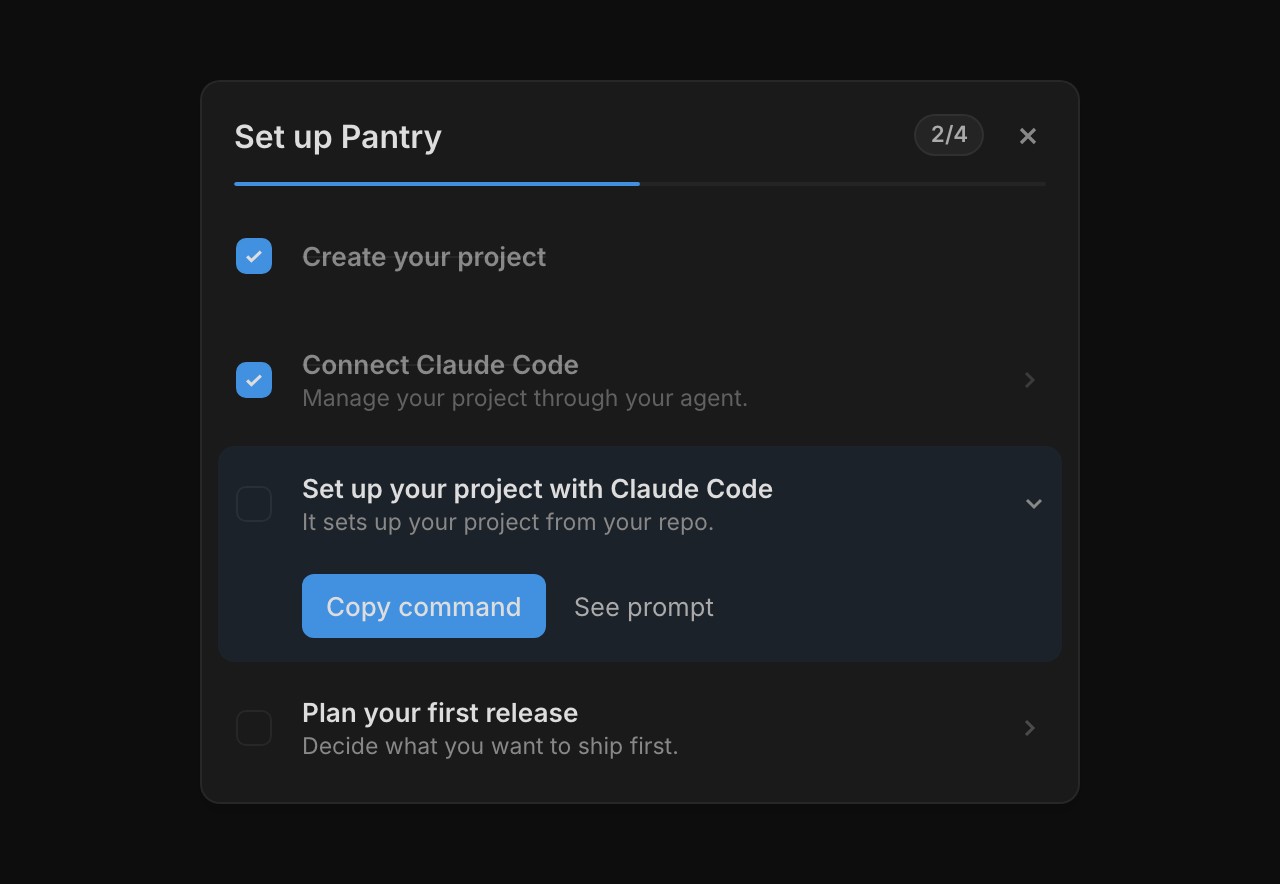
A new project's setup checklist starts with connecting your coding agent. Once Claude Code, Codex or Cursor connects, the dialog gives you one prompt that sets the project up. Claude Code and Codex get Copy command to run in your project's folder, and Cursor gets Open in Cursor with the prompt filled in. Your agent reads the README, docs and any TODO.md or build plan, fills in the product context, creates areas and tells you what it set. If your files have a plan, it proposes a first release with its tasks and waits for your yes before creating it.
It keeps your titles as you wrote them, carries over done states, priorities and notes, and doesn't edit or delete your files. If the repo has no plan yet, it asks whether you want to plan a first release now. Close the dialog early and the same buttons wait in the checklist under Set up your project.
On a phone, the connect step offers Email me the setup link. Open the email on your computer and it takes you to the connect dialog for that project, through sign-in if you need it.
Agents can attach files to tasks
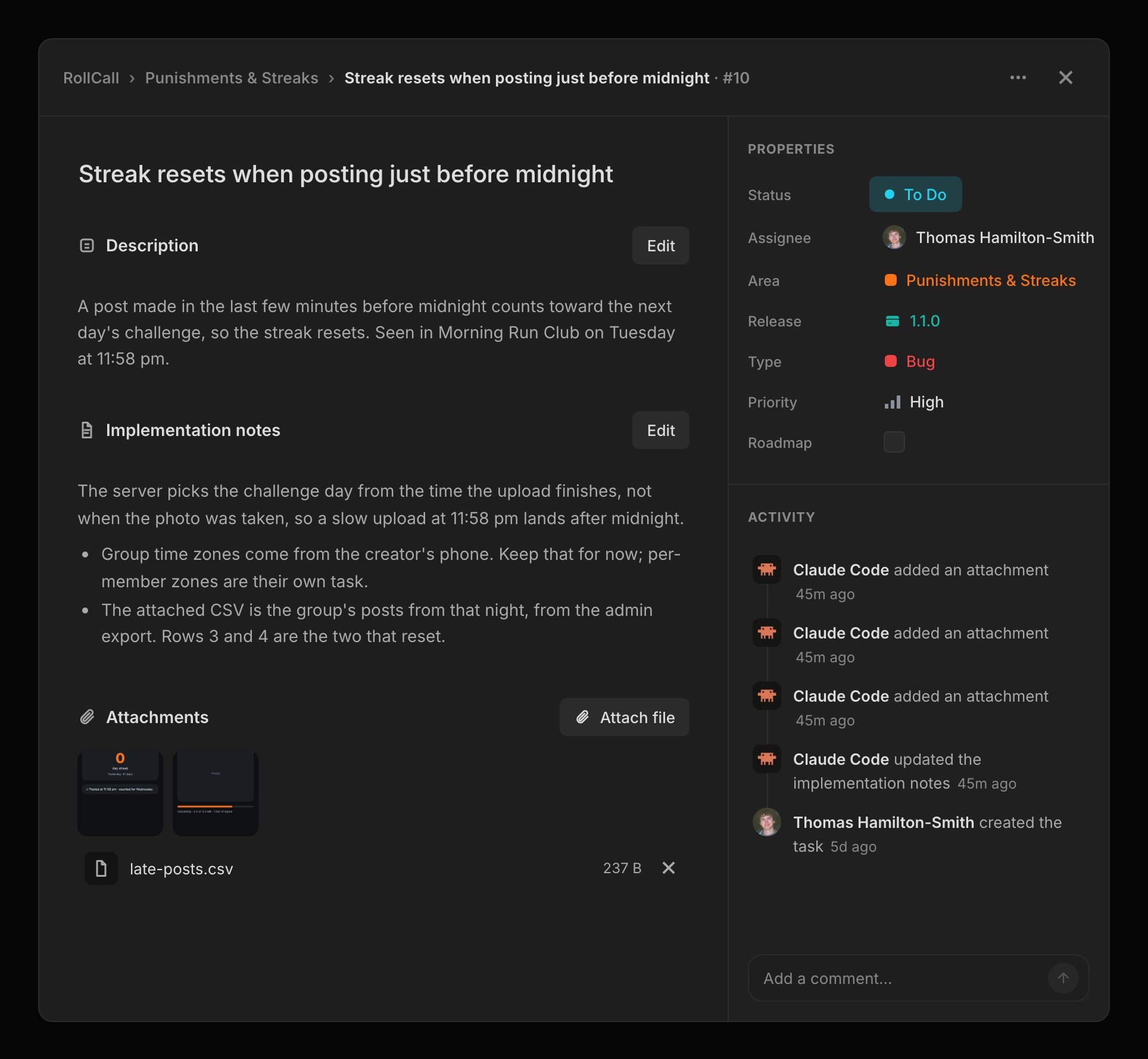
Share a screenshot with your agent and it can attach it to the task it's about. Agents that can run commands, such as Claude Code, Codex and Cursor, upload the file directly, so it never fills up the chat. Chat apps send small files with the request instead.
The rules are the same as in the app: JPG, PNG, WebP, PDF, TXT or CSV, up to 2 MB each and 10 per task. The task's activity shows which agent added it.
Calmer motion and fresher icons
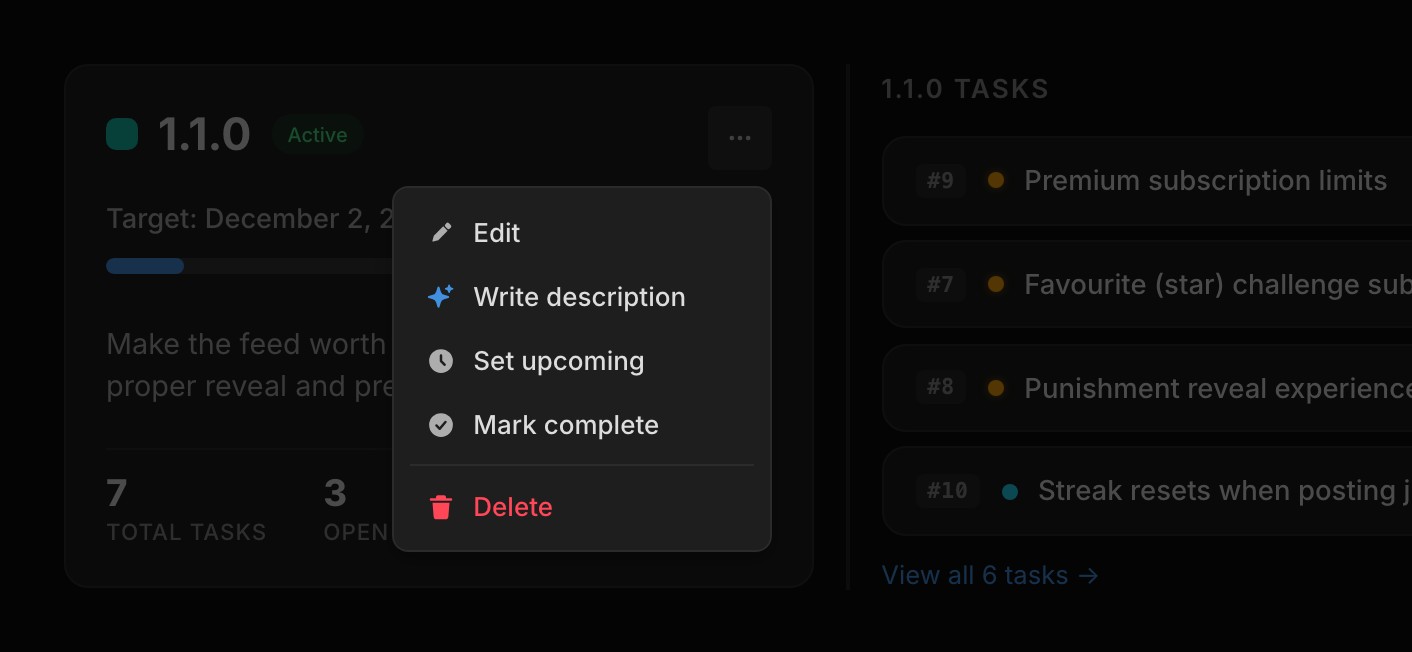
Menus and popovers grow out of the button that opened them and fade away when they close. When the board or dashboard refreshes, cards that were already there slide to their new spot and only new ones fade in, so nothing bobs when nothing changed.
Menus, cards and the sidebar use one new set of filled icons, and Backlog has its own inbox icon. Switches and tooltips look the same everywhere, and tooltips are solid so the page doesn't show through them.
New features 7
- Set up a project from your repo with one prompt to your coding agent Onboarding
- Agents attach files to tasks with task_create_attachment_upload and task_add_attachment MCP
- A dashboard card for the newest session handoff Agent
- Email yourself the setup link from a phone Onboarding
- A Try list in the sidebar for setup steps you haven't done yet Navigation
- A ⋯ and right-click menu on project cards to open settings, rename, archive or delete Projects
- Write description on release cards and in the release modal Releases
Improvements 19
- The setup checklist starts with connecting your coding agent Onboarding
- Creating a project starts with your website, and the rest of the form fills in from it. No website? Skip straight to the fields Projects
- The connect dialog names your agent and tells you what to ask it Agent
- Draft with agent on Plan a release proposes the release before creating it Agent
- One onboarding tip shows at a time Onboarding
- Choosing Current Focus on the dashboard opens the focus field Projects
- Blocked tasks show in amber in What's Next Projects
- GitHub activity shows the GitHub mark, the person's avatar and their login GitHub
- Long Recent Activity lines expand when you choose them Projects
- Account settings confirm each change, and explain what AI credits are for Settings
- Product fields show a character count only near the limit Projects
- At your project limit, every New project button explains the limit Projects
- Menus grow out of the button that opens them Navigation
- One set of filled icons across menus, cards and the sidebar Navigation
- Empty Areas and Releases pages show a clear sample beside the create button Projects
- Task numbers in agent notes link to the task Agent
- Escape closes only the top dialog when a task is open over another Navigation
- Project pages, Settings and account pages load faster Performance
- A signed-out link to a project page brings you back to it after you sign in Auth
Bug fixes 5
- Back from a project returns to All projects Navigation
- The sidebar's help menu opens above the Project Health card Navigation
- A project name filled in from your website fits the 30-character limit Projects
- Ticking setup checklist steps works on every project Onboarding
- The release tip in New task stays clear of Create Task Tasks